5 Minute Timer: How to Design and Export a Countdown Video
The Rija 5 minute timer is a free editor that turns a five minute countdown into an MP4. You choose the colours, font, GIFs and music, and it saves a finished video to your device. Here's how every part of it works.
Plenty of websites give you a 5 minute timer that runs in a browser tab. The Rija 5 minute timer does something different: it lets you design the countdown and export it as a video. You can drop that video into a YouTube stream, a presentation, a Reel or a classroom slide. It's free, there's no sign-up and no watermark, and the whole video is rendered on your own computer.
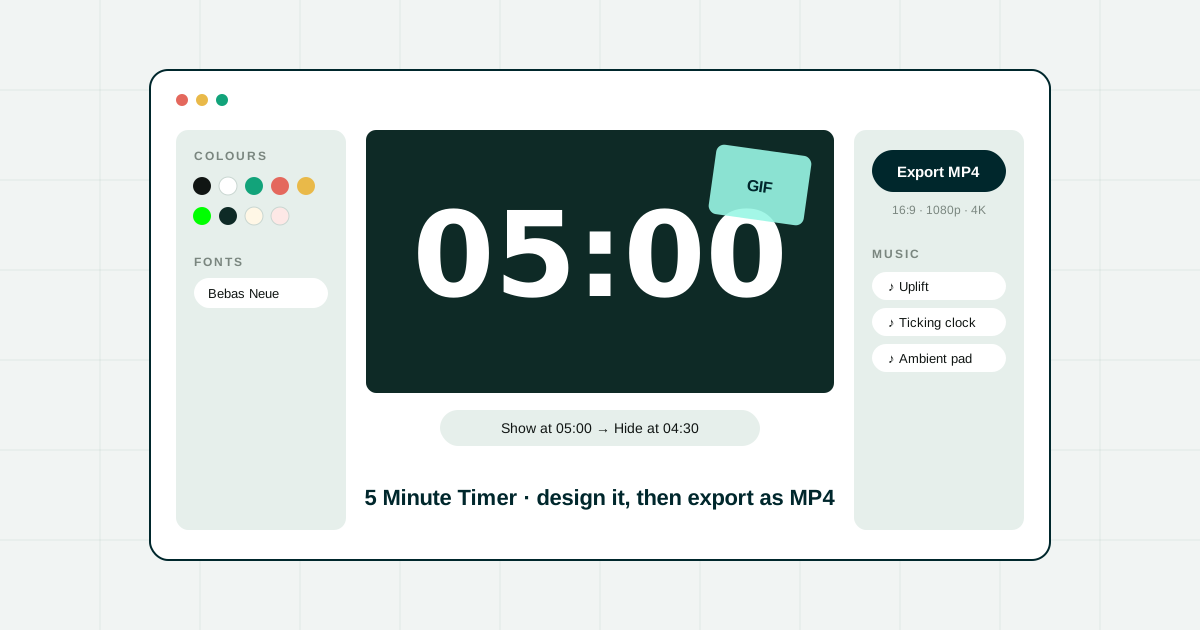
The editor has three columns. On the left are Colours and Fonts, the canvas with the timer is in the middle, and on the right are Export, GIFs and Music. The sections below go through them in the order most people use them.
How the 5 minute timer works
The canvas shows the timer reading 05:00. The top bar has three controls:
- Play / Stop starts the countdown so you can preview it. With the canvas selected, you can also press the space bar. When it reaches 00:00 you'll see a "Time is up" message.
- Reset sets the clock back to 05:00 and resets the design: default colours, font, 16:9 at 1080p, no music, and all GIFs removed. Only press it if you want to start over.
- Full screen fills your screen with the canvas, which is handy if you want to show the timer live without exporting it.
How to change the timer text colour
At the top of the Colours panel is Timer text, which colours the digits. There are three ways to pick a colour:
- Preset dots: click one of the eight dots below the swatch. They are near-black (
#101513), white, green, coral, gold, indigo, blue and grey. - Colour picker: click the swatch that shows the hex code to open your system's colour picker, where you can choose any colour.
- Up / down arrows: the two arrows next to the swatch step through the presets one at a time, so you can compare them quickly on the canvas.
How to change the background colour
Under Background you get the same three controls: a swatch with a colour picker, arrows, and eight preset dots. The presets are white, bright green, porcelain, deep teal, near-black, cream, mint and blush.
Making a green screen timer
The bright green preset is #00FF00, the standard chroma key green. Choose it and the exported MP4 has a solid green background. In OBS, Premiere, DaVinci Resolve, CapCut or any other editor, add a chroma key filter and only the digits will be left on top of your footage. The OBS streaming guide covers the live stream side.
How to change the font
The Fonts panel shows the current font (System UI by default). Click it to open a searchable list of 13 system fonts (Arial, Impact, Georgia, Courier New and others) and over 150 Google Fonts, including Bebas Neue, Anton, Orbitron, Oswald, Montserrat, Poppins and Space Mono. Type in the search box to filter, then click a font to apply it. Google Fonts load when you select them, and they are used in the export too.
Chunky display fonts like Bebas Neue, Anton or Archivo Black are easy to read from across a room. For a digital-clock look, try Orbitron, Michroma or a monospace font like JetBrains Mono.
How to add GIFs to the timer
The GIFs panel is connected to GIPHY. It opens with trending GIFs, and you can type in the search box to find something specific: "confetti", "coffee", "countdown", "cat". Scroll down to load more. Results are filtered to G-rated content, so they're safe for classrooms and work.
There are two ways to add a GIF:
- Drag it from the panel and drop it where you want it on the canvas.
- Click it and it's placed near the top-left of the canvas.
You can add as many GIFs as you like. Click a GIF on the canvas to select it and a small toolbar appears with these controls:
- Move: drag the GIF anywhere on the canvas.
- Resize: drag a corner handle. The size shows as a percentage of the canvas width, anywhere from 4% to 150%. New GIFs start at 25%.
- Rotate: drag the rotate grip. Hold Shift to snap to 15° steps, and double-click the grip to set it back to 0°.
- Layer: GIFs start behind the digits. Use the layer button to bring one in front of the timer or send it back.
- Delete: click the bin icon, or press Delete / Backspace while the GIF is selected.
Setting when a GIF appears and disappears
This is the most useful GIF feature. The toolbar has two time fields joined by an arrow, and both use the time shown on the clock, not the time elapsed:
- The first field is when the GIF appears, such as
05:00(from the start). - The second field is when it disappears, such as
04:30.
Type a time in mm:ss format. It applies as soon as it's complete, or you can press Enter. Escape cancels the edit. A note next to the fields confirms the result, for example "Appears at 05:00, plays for 00:30, gone at 04:30." New GIFs show for the whole five minutes until you change them.
One common setup: a "let's start" GIF for the first 10 seconds (05:00 → 04:50), nothing in the middle, and a confetti GIF for the final 15 seconds (00:15 → 00:00).
How to add music
The Music panel starts on No music. There are three built-in tracks:
- Uplift: bright and upbeat, good for workouts, games and breaks.
- Ticking clock: steady ticking that adds urgency, good for quizzes and exams.
- Ambient pad: soft background sound for focus sessions, meditation or waiting rooms.
Click a track to select it. The play button at the top of the panel lets you preview it.
Uploading your own track
Click Upload a track and choose an audio file from your device. Supported formats are MP3, WAV, OGG, M4A, AAC and FLAC, up to 50MB. The file stays in your browser and isn't uploaded to a server.
The track doesn't need to be exactly five minutes long:
- Short tracks loop without a gap until the five minutes are filled.
- Long tracks are trimmed to five minutes.
- Either way, the last 2 seconds fade out so the video doesn't end with a sudden cut.
How to export the timer as a video
Once the design is ready, go to the Export panel at the top of the right-hand column. There are two settings:
1. Aspect ratio
Click the ratio picker (16:9 by default) and choose a shape. The canvas changes shape straight away so you can check your layout.
| Ratio | Best for |
|---|---|
| 16:9 | YouTube, presentations, TVs, OBS scenes |
| 9:16 | YouTube Shorts, Instagram Reels, TikTok, Stories |
| 1:1 | Instagram and Facebook feed posts |
| 4:3 | Older projectors and classroom screens |
| 3:4 | Portrait feed posts |
| 21:9 | Ultrawide screens and cinematic banners |
| Custom | Enter any width : height from 1 to 99 |
2. Resolution
Choose 720p (HD), 1080p (Full HD), 2K (QHD) or 4K (UHD). The resolution sets the height of the video, and the width follows from the ratio. The Export button always shows the exact size, for example 1920 x 1080 for 16:9 at 1080p.
3. Press Export
Click Export. A progress notice shows the percentage done and the estimated time left, and the button changes to Cancel in case you want to stop. When it's finished, the file downloads automatically with a name like rija-countdown-1080p.mp4.
The video is an MP4 with H.264 video and AAC audio, which plays in almost every player and imports into any editor. It's rendered in your browser using the WebCodecs API, so nothing is uploaded and there's no queue on a server.
- Browser: export works in Chrome, Edge and Safari 17+. Other browsers can use the editor, but you'll be asked to switch browsers to export.
- Keep the tab open and visible. Browsers slow down background tabs, so export takes longer if you switch away.
- If export stalls, the editor tells you and suggests a lower resolution. 4K with several GIFs is the heaviest combination for older machines.
Ideas for using a 5 minute timer video
Teachers put it on the board for timed quizzes, clean-up time or reading sprints. The education guide has more classroom ideas. Streamers use a green screen version as a "starting soon" screen. Presenters add a 16:9 version to a slide deck for breaks. Fitness coaches use the Uplift track for plank and stretch sets. Meeting hosts share their screen with the timer for a five minute break, and people know exactly when to come back.
Need a live countdown for your website instead?
The 5 minute timer makes a video with a fixed length. If you need a countdown to a real date, such as a sale ending or a launch day, that runs live on your website in every visitor's timezone, use the Rija countdown timer builder. It works with WordPress, Shopify and any other website.
Is the 5 minute timer free?
Yes. You can design and export the timer video free, with no account and no watermark.
Which browsers can export the video?
Export uses the WebCodecs video encoder, which is available in Chrome, Edge and Safari 17 or newer. Other browsers can use the editor but cannot export.
Can I use my own music?
Yes. Upload an MP3, WAV, OGG, M4A, AAC or FLAC file up to 50MB. Short tracks loop to fill the five minutes and long tracks are trimmed with a two second fade out at the end.
How do I make a green screen timer?
Pick the bright green background swatch (#00FF00). The exported MP4 has a solid chroma key green background you can remove in any video editor or in OBS.
Is my video uploaded anywhere?
No. The MP4 is rendered in your browser and saved straight to your device. Your uploaded music is not sent to a server.